Net's Windows 10 IoT Enterprise LTSC (21H2) - In-Place Upgrade Guide
This procedure upgrades your current Windows installation to LTSC without performing a clean USB flash install. If you're doing an in-place upgrade, please follow the steps carefully and do not let the installer download updates during setup.
0. Preperation
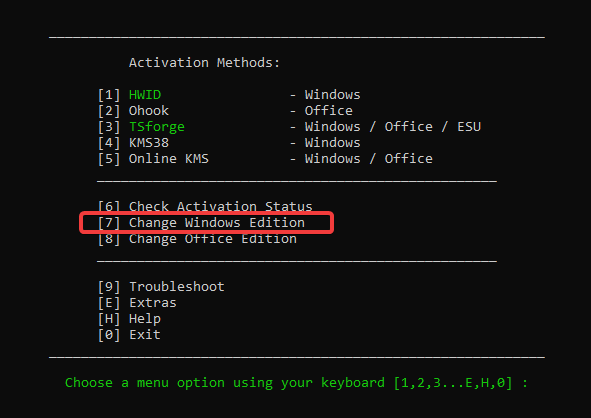
- Make sure your windows version is at least Enterprise IoT! For that run the massgrave script (Open Terminal as Admin) and paste this:
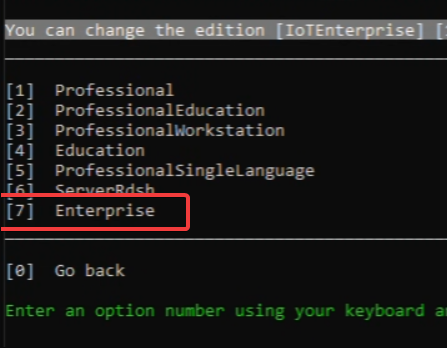
- Press "Change Version" and Select Windows 10 IoT Enterprise (Extremely important!)
- Press 7 and then select Windows IoTEnterPrise
- Now press 1 for HWID (Windows Activation)
- Once that's done, restart your computer.
irm https://get.activated.win | iex
1. Required Registry Patch (before launching installer)
Before you start the upgrade (while still in your existing Windows), open an Terminal as Admin and run:
reg add "HKLM\SOFTWARE\Microsoft\Windows NT\CurrentVersion" /v EditionID /t REG_SZ /d EnterpriseS /f & reg add "HKLM\SOFTWARE\Microsoft\Windows NT\CurrentVersion" /v ProductName /t REG_SZ /d "Windows 10 Enterprise LTSC" /f & reg add "HKLM\SOFTWARE\Microsoft\Windows NT\CurrentVersion" /v ReleaseID /t REG_SZ /d 21H2 /f & reg add "HKLM\SOFTWARE\Microsoft\Windows NT\CurrentVersion" /v DisplayVersion /t REG_SZ /d 21H2 /f & reg add "HKLM\SOFTWARE\Microsoft\Windows NT\CurrentVersion" /v CurrentBuild /t REG_SZ /d 19044 /f & reg add "HKLM\SOFTWARE\Microsoft\Windows NT\CurrentVersion" /v CurrentBuildNumber /t REG_SZ /d 19044 /f
This is needed to spoof windows to think it's an older version, so it tricks the installer.
2. Mount & Launch the ISO
- After downloading the ISO file, right-click it in File Explorer and choose
Mount(or double-click) so it appears as a virtual drive. - Within the mounted drive, run
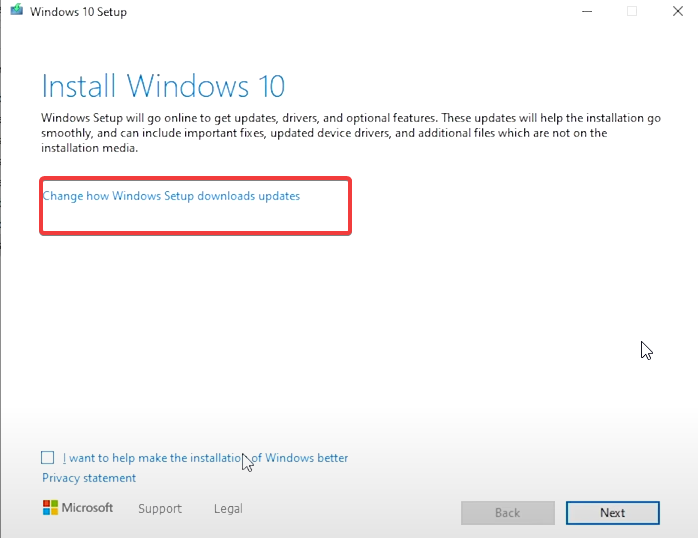
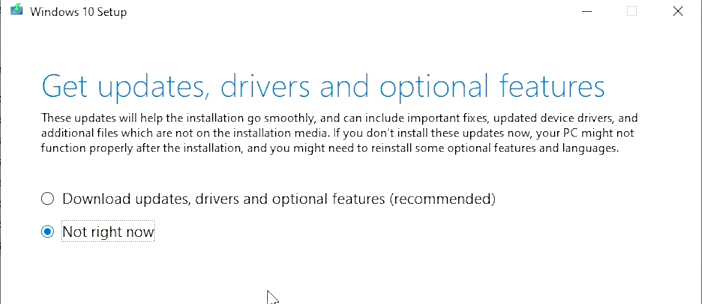
setup.exeto begin the upgrade - do not reboot to USB or format anything. - When the installer asks about updates or how to install, select the option to skip checking for updates right now. This is key to prevent update interference.
- Click "Change how Windows Setup downloads updates
- Make sure to tell it not right now!
- If not done correctly, this will fail and revert to your previous windows installation and you have to do Everythinga all over again
- Also make sure it keeps your files and applications
- If that's all good, you're good to go! Just sit back and watch it install (It will reboot many times)

3. After Upgrade - Update & Verify
- Once the upgrade finishes and you're logged into LTSC, go to Settings -> Update & Security and install the latest cumulative updates.
- Verify your edition under Settings -> System -> About shows "Windows 10 Enterprise LTSC".
- Reactivate any software or drivers if needed and check that everything (apps, data) is working.